
Consent Management
In this workshop, you’ll learn the fundamentals of how consent is managed in Marketing Cloud, including how communication subscriptions are used and how consent is created, captured, and updated. You’ll also explore the different methods available for managing consent records.
Fundamentals
Consent in Marketing Cloud is managed differently from both Marketing Cloud Engagement and Marketing Cloud Account Engagement. Instead of channel-based or contact point-based subscription models, it uses Communication Subscription DMOs in Data 360 as the system of record for consent and supports Level 4 consent, enabling granular, auditable permission control across channels and communication subscription types.
Consent levels determine where permission is evaluated within the hierarchy of an individual, channel, contact point, and subscription. Level 1 represents the broadest scope (individual-level consent), while Level 4 provides the most granular control by evaluating consent at the subscription level, as outlined in the table below.
| Level | Scope | Description | Example |
|---|---|---|---|
| 1 | Individual (global) | Applies to the entire individual record, regardless of communication channel, subscription type, or contact point value. This represents a person-level permission (or restriction) covering all marketing communications. | An individual opts out globally — no marketing communications can be sent via any channel, for example, email or SMS. |
| 2 | Channel | Applies to a communication channel as a whole, regardless of which specific contact point is used within that channel. | An individual opts out of Email — no marketing emails can be sent to any of their email addresses. |
| 3 | Contact point | Applies to a specific contact point value (e.g., one email address or one phone number), regardless of subscription type. | An individual opts out of their work email address — communications may still be sent to their personal email if permitted. (Aligns with Sales Cloud’s Email Opt Out behaviour.) |
| 4 | Contact point plus communication subscription | Applies to a specific contact point value and a specific subscription type, allowing the most granular control over communications. | An individual opts out of the Monthly Newsletter at their work email address but remains opted in to Event Invitations at the same address. |
Communication Subscription Objects
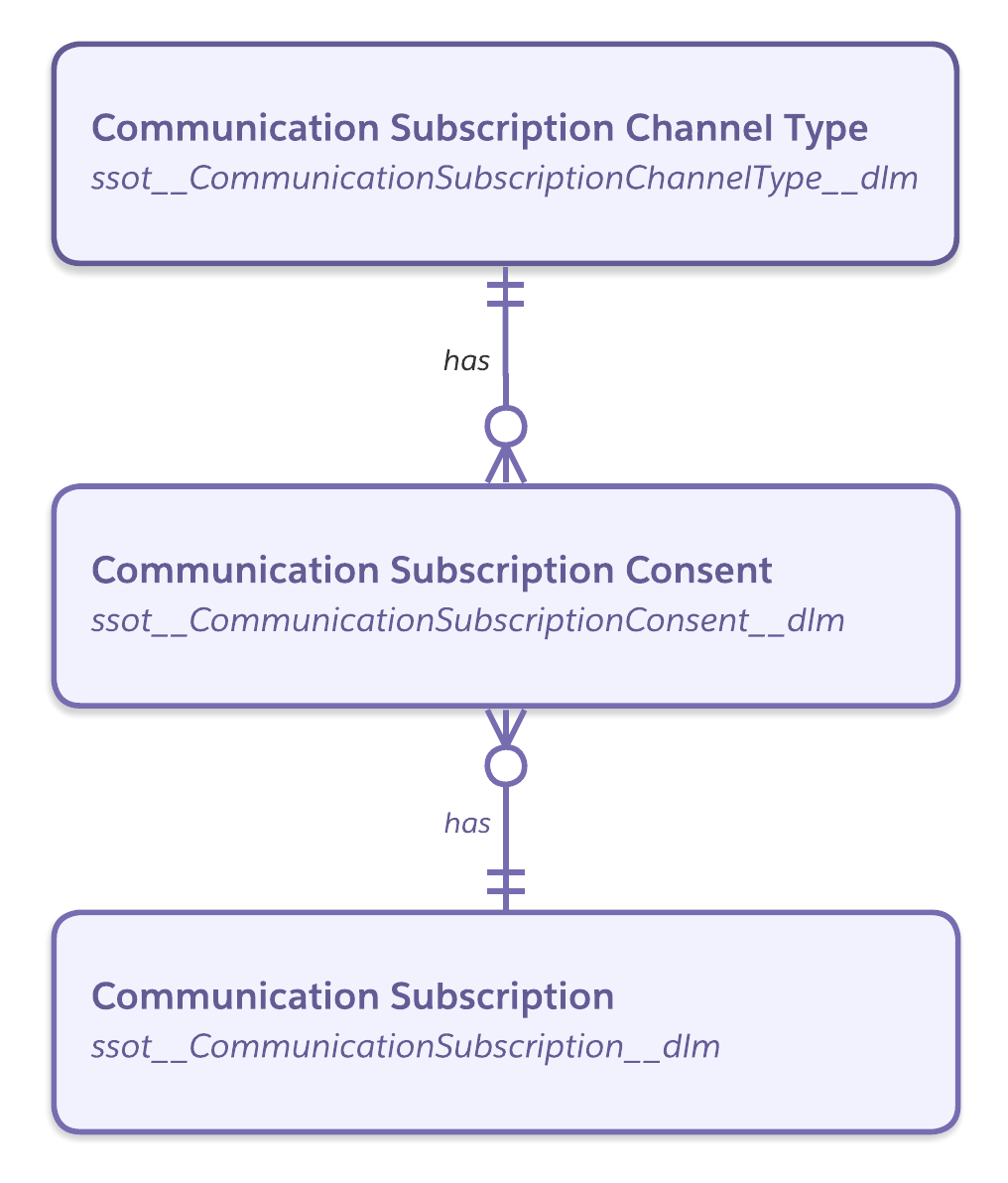
Communication Subscription in Data 360 is managed using three related DMOs that together define the subscription type, the channel it applies to, and the individual’s consent status for a specific contact point.
| Data Model Object | Description | Example |
|---|---|---|
| Communication Subscription | Defines the type of communication an organization offers and that an individual can opt-in to or opt-out from. This represents the purpose or category of messaging. | Marketing, Events, Monthly Newsletter |
| Communication Subscription Channel Type | Defines the channel used to deliver a communication subscription. Each subscription can be associated with one or more supported engagement channels. | Email channel for the Marketing communication subscription |
| Communication Subscription Consent | Stores the individual’s consent status for a communication subscription at a specific contact point value and channel type. | someone@example.com opted in to Marketing via Email |
The diagram below shows the entity relationship between Communication Subscription DMOs in the Data 360 model. Together, they define what type of communication someone can receive, via which channel, and whether they’ve consented to it at a specific contact point.
Create Communication Subscription
In this exercise, you will create a communication subscription. You will need to create different communication subscriptions for each category of marketing content that you send, for example 'Monthly Newsletter' or 'Events'.
Channel-Based Consent
An opt-in consent record must exist for a specific contact point and communication subscription channel type in order for an individual to receive promotional emails.
SMS messaging requires opt-in consent in all cases, regardless of message type. Unlike email—where transactional messages may rely on a legitimate interest basis under frameworks such as GDPR—SMS regulations generally require explicit prior consent for both transactional and promotional messages. This requirement is typically reinforced by mobile carriers at the network level, which is why the product does not provide a mechanism to bypass SMS consent enforcement.
- Click on the Consent tab in the Marketing app.
- Select Subscriptions, then click
New Subscription. - In the Subscription Name field, enter
Monthly Newsletter. - For the Channels menu, select Email.
- Click Save.
Uploading Consent Records
In this exercise, you will upload a CSV file containing consent records. This approach is typically used to establish initial consent status at scale for specific contact point values (such as email addresses or mobile numbers) across a defined communication subscription and channel type.
- Select Consent Imports from the side menu on the Consent page.
- Click
Import - Select Email from the Channel menu.
- Select Monthly Newsletter from the Communication Subscription menu.
- Select the Opt In consent status tile.
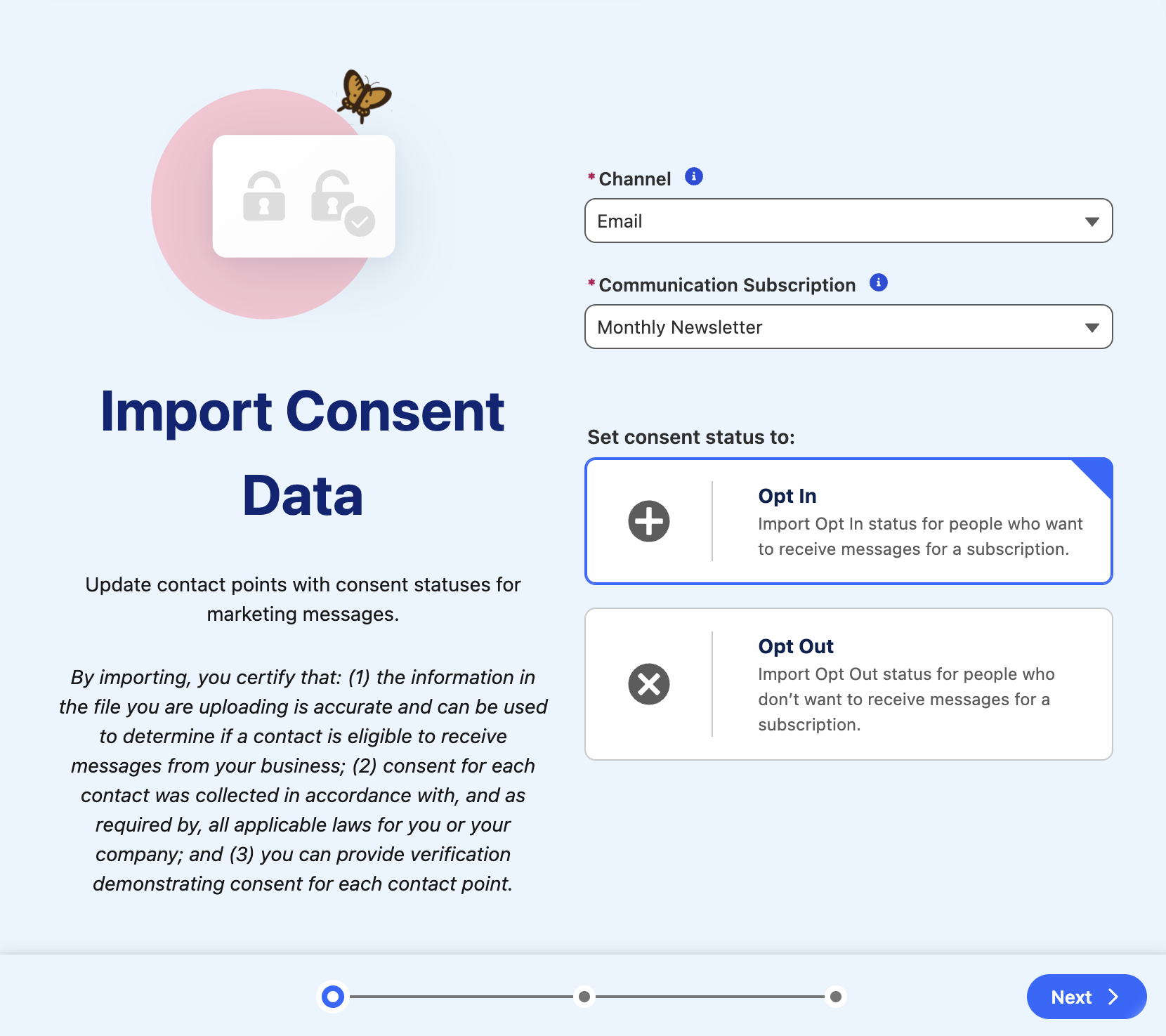
- Click Next.
- Click the Use this sample file link.
- Open the downloaded file in spreadsheet software or a text editor.
- Optionally, update the email addresses and timestamp values, then save the file.
- Click
Upload Files. - Select the file you downloaded previously and click Open.
- Click Next.
- Preview import fields and Click Import
. - Click Done.
Automating Consent Record Creation
In many scenarios, you may need consent records to be created automatically rather than manually. You can use a flow element to create or update consent records from Automation Event-Triggered Flows (including Form-Triggered Flows) and Data Cloud-Triggered Flows.
In this exercise, you will configure a Create Consent Flow action to automatically generate new consent records for the Monthly Newsletter communication subscription when a lead completes a newsletter sign-up form on a landing page.
Consent Compliance
When creating consent records, you must certify that the individual is eligible to receive messages from your organization, and that consent for each contact point value and communication subscription has been collected in accordance with all applicable laws and regulatory requirements.
- If you haven’t already completed the Forms & Landing Pages workshop, complete it first to create an email newsletter signup form that captures new Lead records in Salesforce CRM.
- Click the Flows tab from the Marketing app.
- Select the Newsletter Signups Flow.
- Click Open Flow.
- Click Edit As New Version.
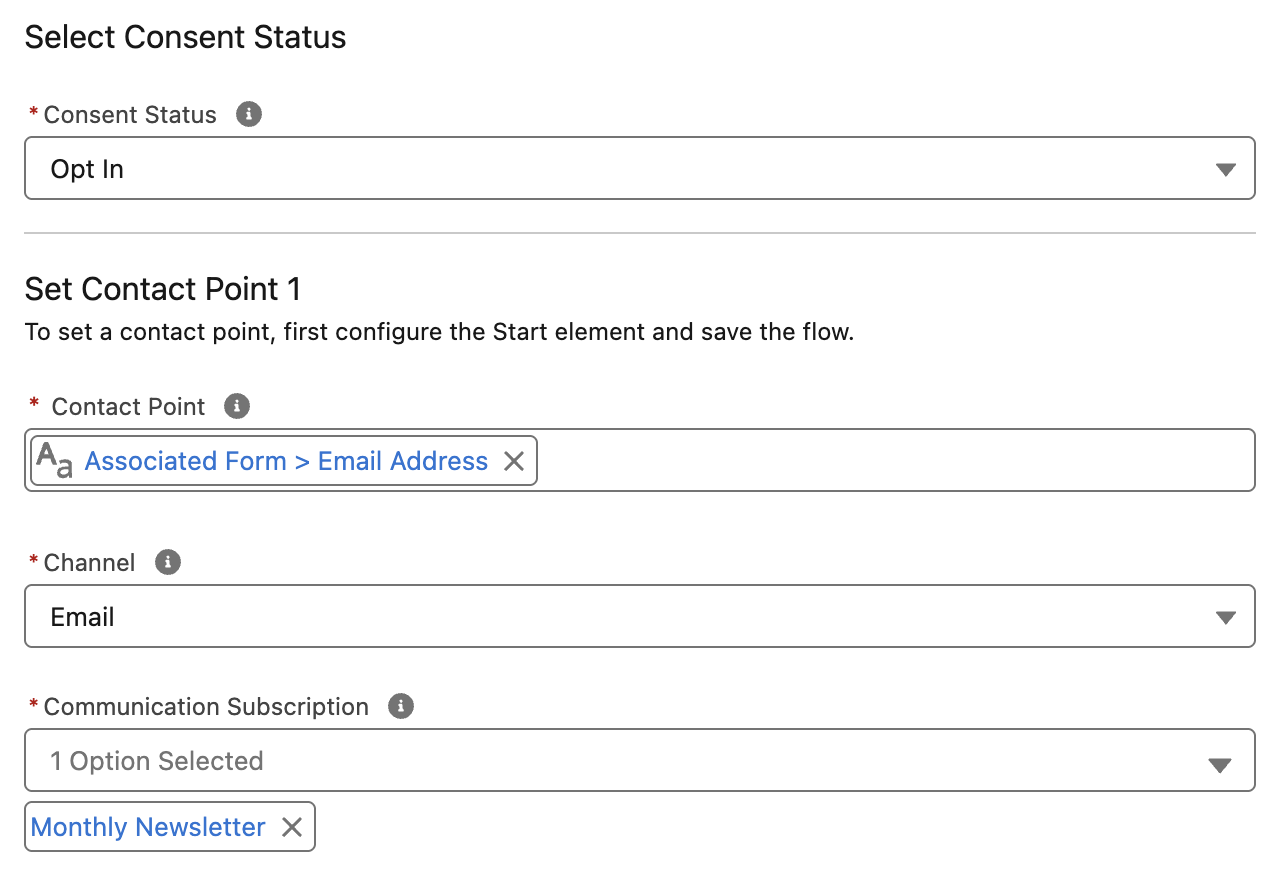
- Click the Consent Request flow element.
- Remove the existing Product Announcements subscription from the Communication Subscription field by clicking on the
icon. - Select the Monthly Newsletter subscription that you created in an earlier exercise from the Communication Subscription menu.
Create Consent Process
To support real-time consent management during messaging sends, the platform uses an internal Consent Service and cache layer. When consent records are created using the Create Consent Flow element, the Consent Service:
- Updates the consent cache layer first, and
- Ingests the consent record to a DLO (which is mapped to the Communication Subscription Consent DMO).
This ensures consent changes are immediately respected at send time.
- Click Save.
- Click Activate, then click Activate in the Activate this flow dialog.
Unsupported Consent Update Methods
In addition to the Create Consent Flow element, Messaging Consent Flow Actions (MessagingConsent and MessagingConsentV2) are also available in flows.
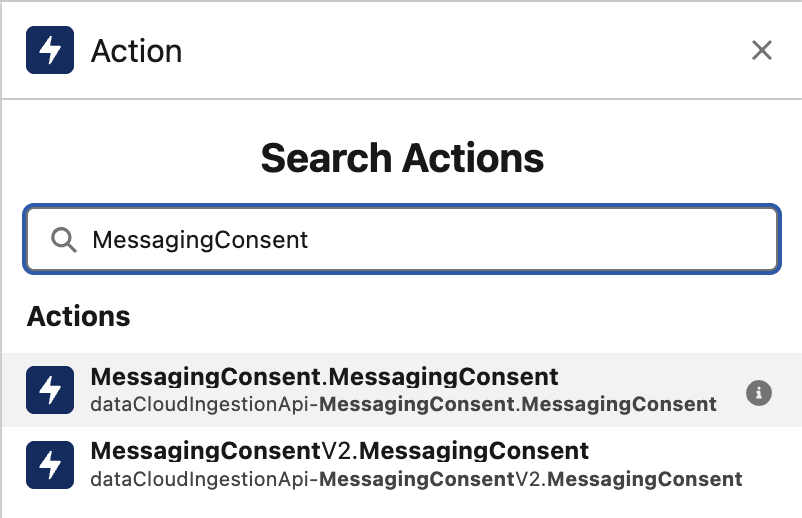
These Actions are automatically created by Data 360—when an Ingestion API Connector is created, Data 360 generates a corresponding Flow Action based on the connector’s schema. These API Connectors are used internally by the platform to create consent records.
The Communication Subscription Consent DMO can also be updated using other methods, including Batch Data Transforms or Data Streams.
Warning
While these alternate methods can be used to update records the Communication Subscription Consent DMO, they do not update the consent cache layer used by the platform.
As a result, consent changes may not respected correctly during messaging sends, even though it appears that updates were saved in the Communication Subscription Consent DMO.
For this reason, use the Create Consent Flow element for updating consent.
Privacy Consent Status Component
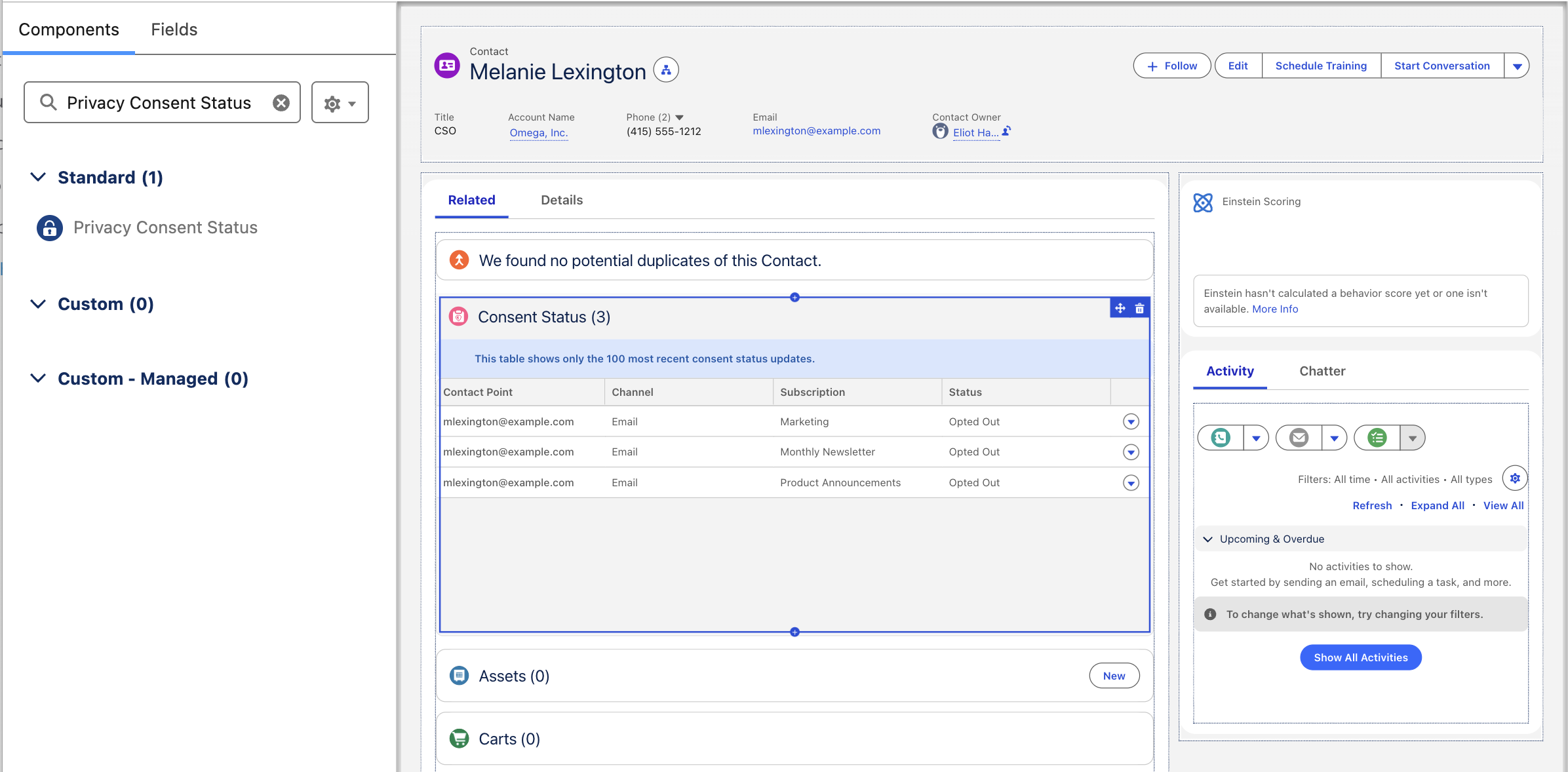
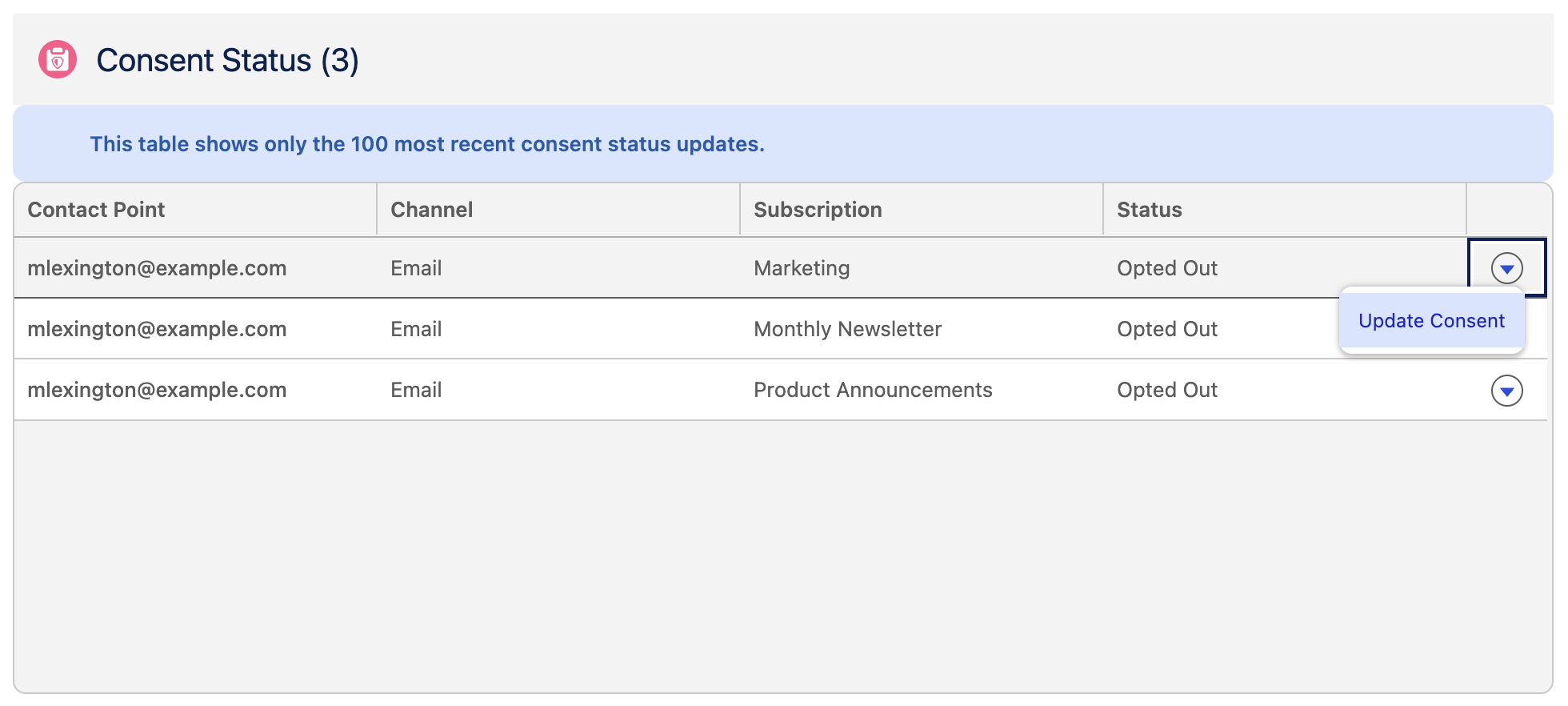
The Privacy Consent Status lightning component can be added to CRM record pages to display a list of communication subscriptions and their associated consent statuses for Leads, Contacts, and Person Accounts. From this component, users can also update consent status directly for a selected communication subscription and channel.
In this exercise, you will add the lightning component to the Contact record page. Optionally, you can also follow the same steps to add the component to Lead and Person Account record pages.
- Click the Contacts tab from the Marketing app.
- Click on any Contact name in the list view to open the record.
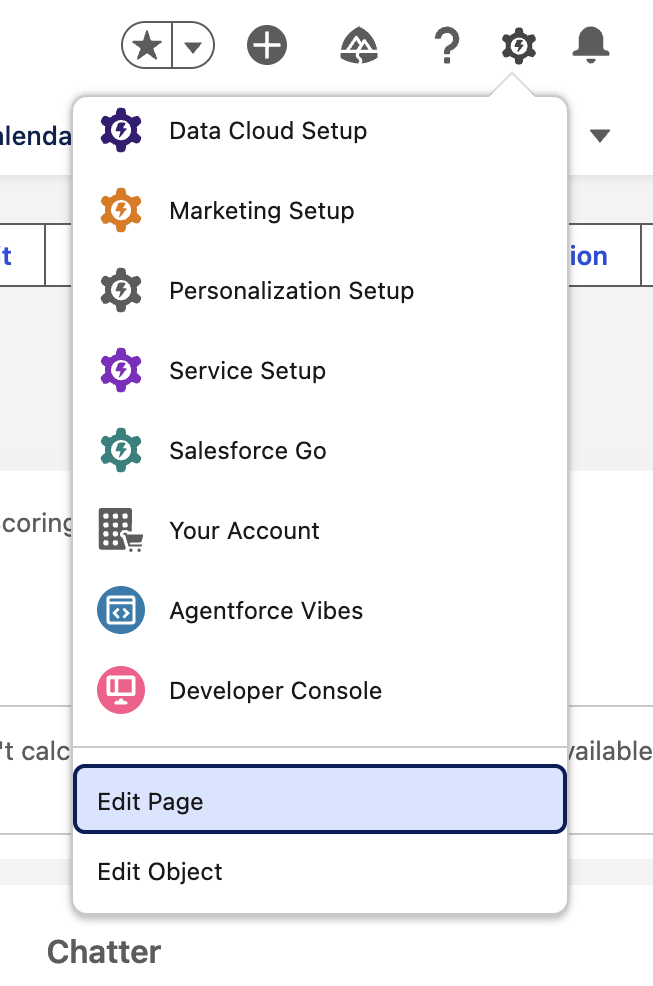
- Click on the icon, then scoll down on the Setup menu and select Edit Page.
- Enter
Privacy Consent Statusin the Components Search field. - Click and drag the Privacy Consent Status component to an area on the canvas.
- Click Save, then click Activate, if prompted.
- Click Assign as Org Default in the Contact Record Page dialog.
- Select the Desktop form factor and click Next.
- Click Save in the Review assignment dialog.
- Click the back arrow
in the top left corner of the page to return to the contact record. - Note the Privacy Consent Status component now appears on the record page. Update the Consent Status for a subscription by clicking on the
icon in a subscription row and select Update Consent. - Change the Consent Status value, then click Save.
Consent Updates
Updating consent using the Privacy Consent Status component will update the consent cache layer and also create (or update) a record into the Communication Subscription Consent DMO.