
Form Handlers
DeveloperIntermediate~15 mins
In this workshop you will create a form handler to capture form data from an external website and create Lead records using flow.
Configure CORS Allowlist
Cross-Origin Resource Sharing (CORS) allows web browsers to request resources from other origins. To allow access from JavaScript code on an external web page to Salesforce, you will need to add an origin serving the request code to the CORS allowlist.
- Click on the icon and click the first Setup menu item.
- In the Quick Find field, enter
CORSand select CORS from the Security menu. - Click New.
- Enter
https://cdpn.ioin the Origin URL Pattern field. - Click Save.
Create Form Handler
- Open the Marketing app from App Launcher
. - Click on the Content tab.
- Select Content Workspace for Marketing Cloud from the list view.
- Click Add and choose Content.
- Select the Form Handler radio button, then click Create.
- Click Add Data Source.
- Enter
CRM_Leadsin the Name field. - Select Lead from the Object Menu.
- Leave the Record Type as Lead.
- Click Save.
- Click the
icon on the canvas.
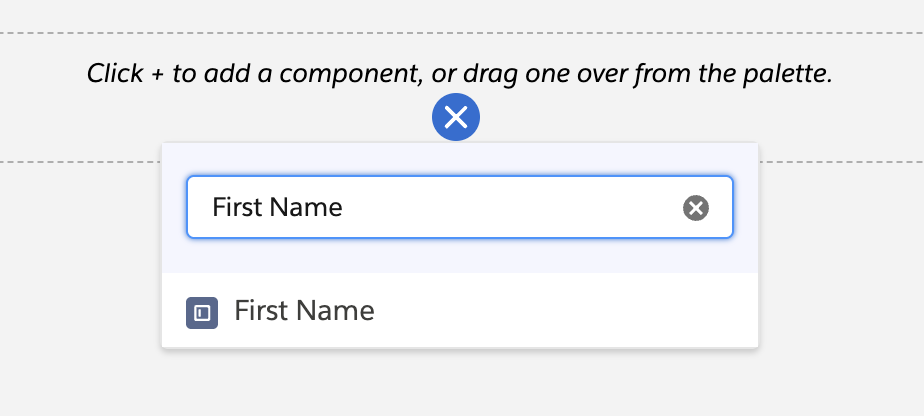
- Enter
First Namein the Search field and select First Name. - Repeat the previous 2 steps to add
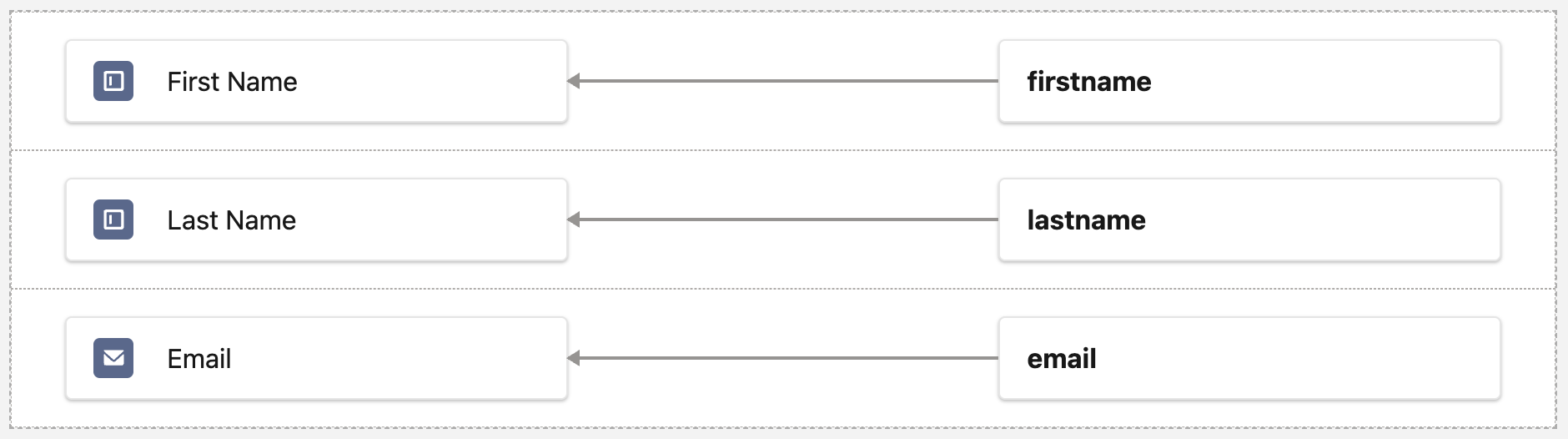
Last NameandEmailfields. - Click on each form component and enter the corresponding values in the External Field Name fields as follows:
- First Name:
firstname - Last Name:
lastname - Email:
email
- Expand the Details section and enter
CRM Leadsin the Title field. - Expand the Submission Redirect section.
- Enter
https://mock.httpstatus.io/200(or any public URL) in the Success Page URL field. - Enter
https://mock.httpstatus.io/400(or any public URL) in the Failure Page URL field. - Click Save.
- Expand the Flow section and click New Flow.
- Click Publish
- Click Next in the Publish Content dialog
- Click Publish Now.
Add Code to Web Page
- Expand the Code Snippet section.
- Click on
Copy below the Tracking Script section. - Click here to open a code editor in a new browser window.
- Paste the code in the HTML panel.
- Return to the Form Handler page and click on
Copy below the Form Attributes section. - Paste the code directly below the code you previously pasted.
- Copy the following code.
  <div>
    <label for="firstname">First Name</label>
    <input type="text" name="firstname" required>
  </div>
  <div>
    <label for="lastname">Last Name</label>
    <input type="text" name="lastname" required>
  </div>
  <div>
    <label for="email">Email Address</label>
    <input type="text" name="email" required>
  </div>
<button type="submit">Submit</button>- Place your cursor before the closing
</form>tag in the HTML panel and paste the code you just copied. - Complete the form fields.
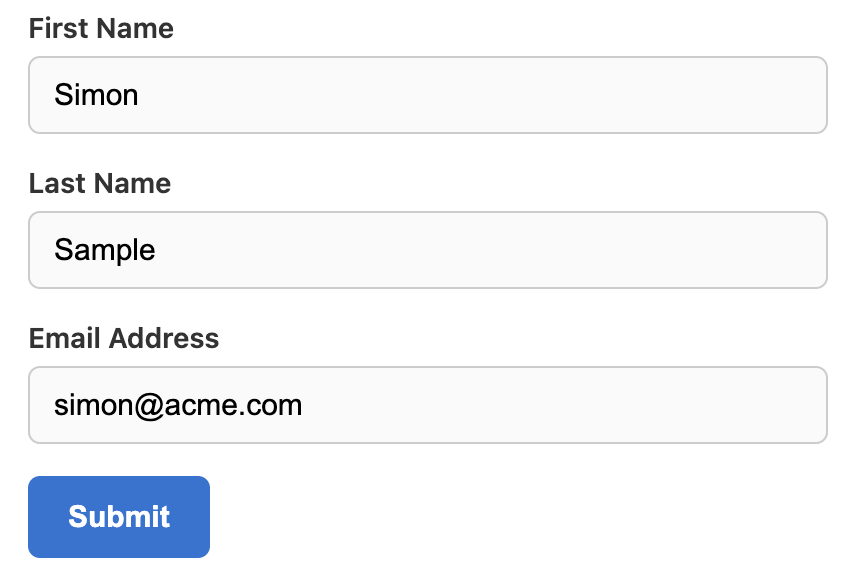
- Click Submit.
- Return to Salesforce and open the Marketing app.
- Click the Leads tab.
- Confirm a new Lead record appears in the list view from the form data you submitted.
Additional Resources
Connect External Forms to Salesforce Objects with Form Handler