
Scoring Models
AdministratorFoundational~12 mins
Scoring rules enable you to assign scores to individuals based on their engagement with your marketing content and how closely they fit your ideal customer.
There are three types of scoring rules in Agentforce Marketing:
- Engagement Score define how often individuals or accounts interact with your marketing content.
- Fit Score define how closely individuals or accounts align with your ideal customer profile.
- Overall Score combines both engagement and fit scores to represent a unified individual’s total score.
Create Scoring Model
- Click on the icon and click the first Setup menu item.
- In the Quick Find field, enter
Customer Engagementand select Customer Engagement from the Reporting and Optimization submenu. - Click Go to Scoring Setup.
- Click New.
- Enter
Peoplethe Model Name field. - Click on the People tile.
- Click Next.
- Select the Unified Individual ruleset from the Identity Resolution menu.
- Click Create.
Customize Scoring Rules
When you create a scoring model, default rules are applied automatically. You can customize these rules to better reflect your marketing objectives.
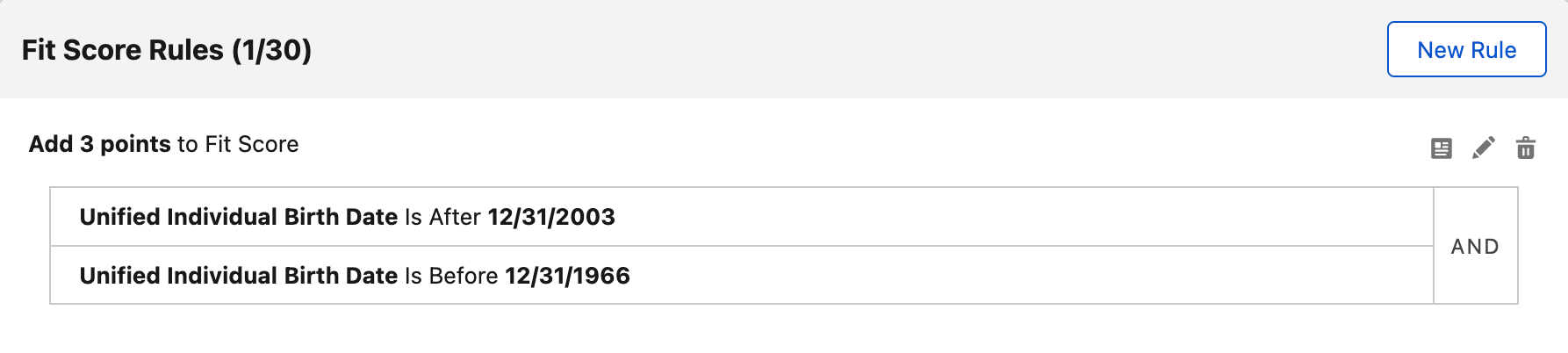
In this exercise, you will customize the Fit Score to represent the ideal customer for Northern Trail Outfitters, which is between 21 to 60 years.
- In the Fit Score Rules section, click the trash can icon
to remove the default rule.

- Click New Rule.
- Enter
NTO Customersin the Description field. - Select Birth Date from the Attribute field.
- Select Is After from the Operator field.
- Enter
12/31/2003in the Value field. - Click
Add to Group. - Click on Unified Individual in the Attribute field, then click on Unified Individual from the Direct menu and select Birth Date.
- Select Is Before from the Operator field.
- Enter
01/01/1967in the Value field. - Enter
3in the Adjust fit score by field. - Click Done.
Edit Overall Score Ratio
By default, the overall score applies equal weighting to engagement and fit, but this can be customised to better reflect your priorities. In this exercise, you will apply a 70% weighting to the engagement score.
- Click Edit Score Ratio.
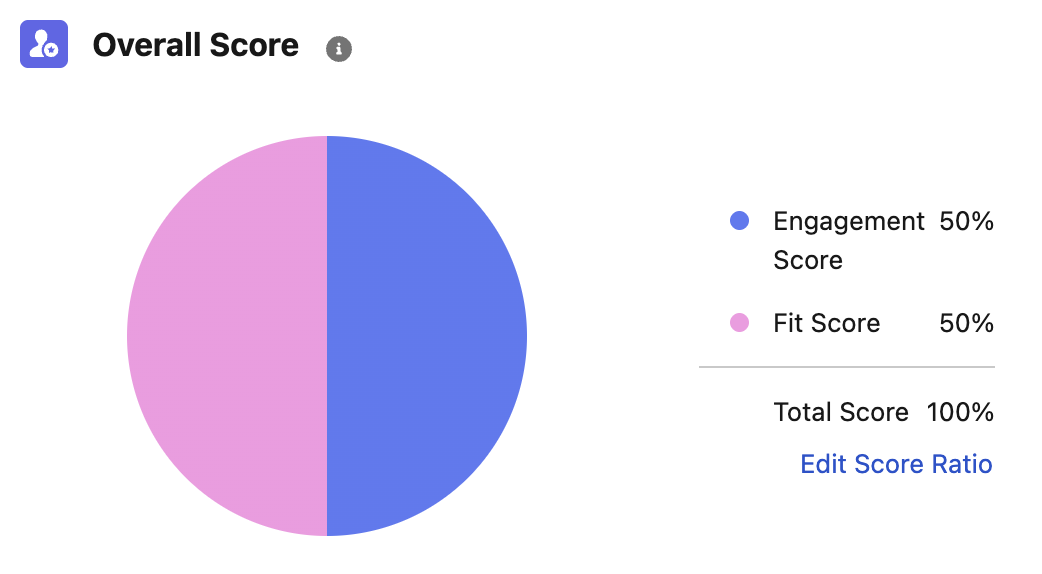
- Update the Engagement Score value to
70. - Click Save.
- Click Publish.
- Select Every 24 Hours from the Schedule menu.
- Click Publish.