
Response Templates
Introduction
Response templates define the configuration options available to marketers when creating a personalization decision. They also ensure that all responses returned for a given personalization point follow a consistent structure and data format.
Before starting the hands-on exercises in this workshop, watch the video below to learn more about response templates in Salesforce Personalization.
Enter the password LearnSPtoday to play the video.
Manual Content Response Template
In this first exercise, you’ll create a manual content response template that you’ll later use with a personalization point (configured for manual content personalization) in the Personalization Points workshop. This template will define the structure of the content returned by the decision.
- Search and select
Personalizationfrom App Launcher. - Click on the Response Templates tab.
- Click New.
- Select the Manual Setup tile and click Next.
- Complete the Response Template fields with the following values:
- Data Space: default
- Personalization Type: Manual Content
- Response Template Name:
Banner with CTA - Response Template API Name:
Banner_with_CTA
- Click Next.
- Add the following attributes. Click Add Attribute to create each additional attribute.
HeaderSub-Header(update the generated API name toSub_Header)CTACTA Destination URLImage URL
- Click Save.
Response Template Attributes
Each attribute you add to your response template configuration creates a corresponding text field that business users can populate when defining a decision or experiment cohort on a personalization point that uses the template.
Recommendations Response Template
In this next exercise, you’ll create a recommendations response template that you’ll later use with a personalization point configured for recommendations-based personalization.
- Click New.
- Select the Manual Setup tile and click Next.
- Complete the Response Template fields with the following values:
- Data Space: default
- Personalization Type: Recommendations
- Response Template Name:
Recs with Header - Response Template API Name:
Recs_with_Header
- Click Next.
- Click Add Attribute.
- Enter
Recs Headerin the Attribute Label field. - Click Next.
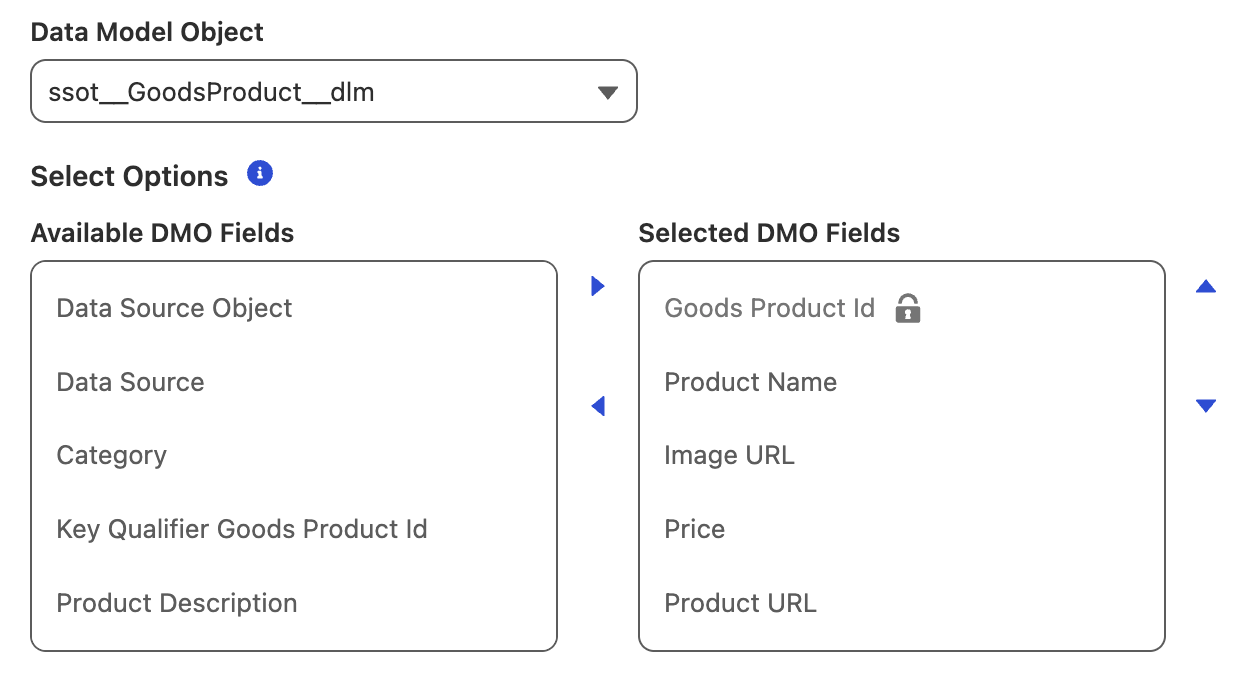
- Select the following fields from the Available DMO Fields list and click
to add them to the Selected DMO Fields list: - Product Name
- Image URL
- Price
- Product URL
- Click Save.
Data Model Objects and Fields in Recommendation Response Templates
Note that the Data Model Object field in the recommendations response template configuration is pre-populated with the Goods Product DMO (ssot__GoodsProduct__dlm). In a recommendations response template, the objects available for selection are limited to DMOs that act as root objects in an item data graph—that is, objects that are eligible to be returned as recommendation results.
The fields available to include in the response are the mapped fields on that DMO. However, a recommender can only return fields that are both mapped on the DMO and explicitly selected in the item data graph definition.
Allowing customers to control which item attributes are returned in a decision response is important as it helps prevent sensitive data—such as internal pricing or margin—from being exposed on client-side surfaces like websites or apps. This approach enforces stronger data governance while still giving marketers the flexibility to return the attributes needed for personalization experiences.